
Key Takeaways
- Use an Instagram Reels safe zone template to mark three dead areas in your frame: top (profile icon and username), bottom (caption, audio bar, and like/comment/save buttons), and sides (6% on each edge).
- Meta’s official margins: 14% clearance at the top, 35% at the bottom, 6% on each side. At 1,080 by 1,920 px, your safe text area is roughly 950 by 979 pixels in the center of the frame.
- Since January 2025, the Instagram profile grid uses a 3:4 crop, not a 1:1 square. A Reel cover that clears every in-playback overlay can still have its headline cut off on your profile grid.
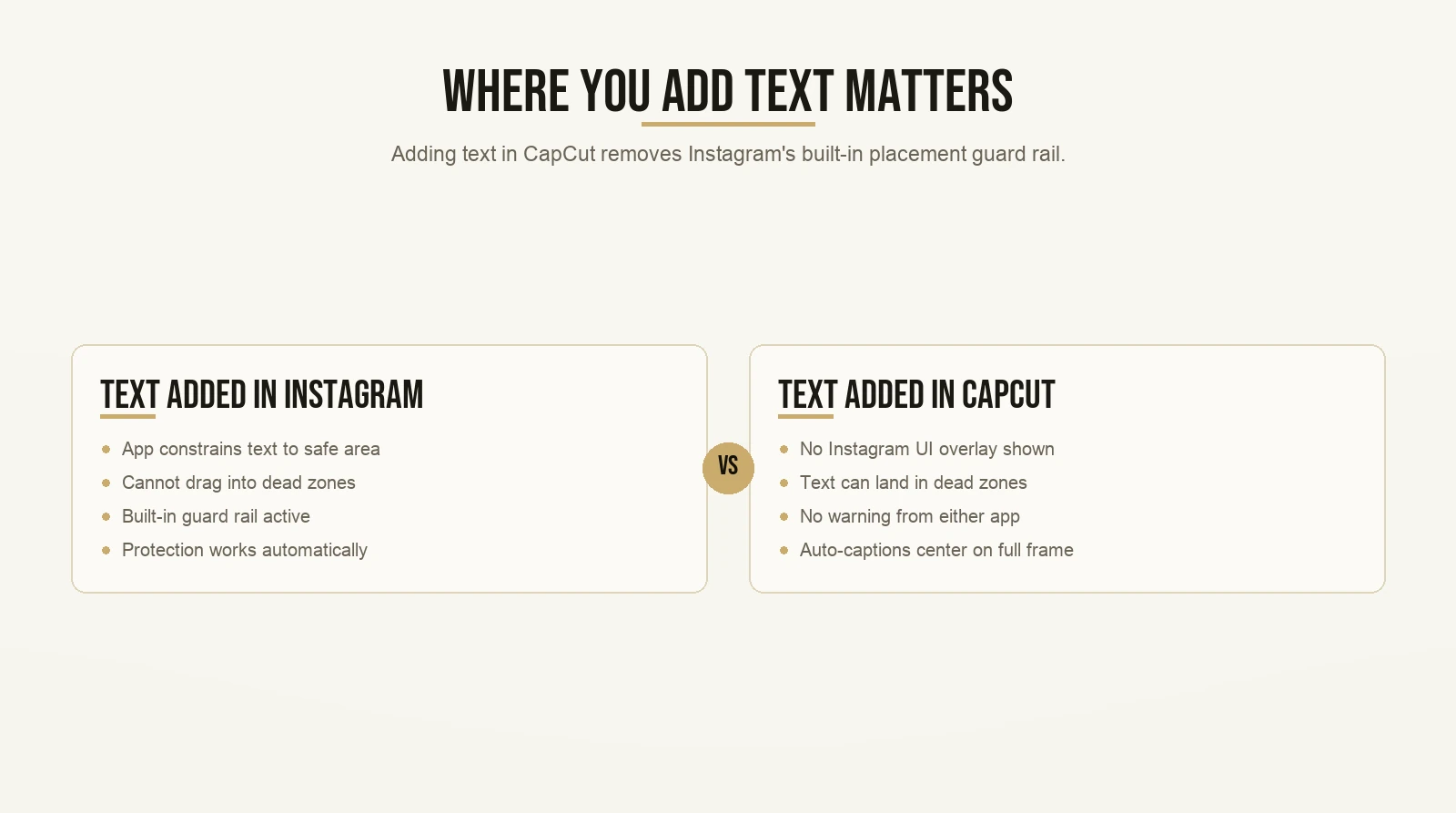
- Text added inside the Instagram app is automatically constrained to the safe zone. Text baked into your video in CapCut is not. This single distinction is where most safe zone mistakes happen.
- Instagram’s own Help Center says Reels that are visually cluttered may be shown less often. Safe zone violations affect reach, not just appearance.
What is an instagram reels safe zone template?
An Instagram Reels safe zone template is a transparent overlay you place on your video canvas that marks the areas where Instagram’s own interface will cover your content. The safe zone is the rectangle in the middle of a 9:16 frame. It sits inside all of Instagram’s buttons, caption bars, profile icons, and interaction columns.
Keep your text inside it and viewers read it. Put it outside and Instagram’s interface covers it on every screen.
The template is not a one-time download. Every time you add baked-in text to a Reel in a third-party editing app, you need this overlay before you export.
Why does the safe zone affect your reach, not just your design?
Most creators treat safe zones as a visual polish step. Keep the text legible, avoid overlapping a button, look professional. That framing misses the bigger problem.
Instagram’s Help Center on Reels states that Reels with low resolution, blurriness, or visual clutter “may be shown less often.” That is Instagram’s language, not a guess. A hook buried under a caption bar creates visual clutter on every viewer’s screen. The algorithm does not know your text is being covered. It sees a video that is not holding attention and it distributes that video less.
Then look at how Reels get ranked. The Meta Transparency Center explains that the ranking system predicts whether a viewer will watch three seconds, comment, reshare, or follow. Watch time in the first three seconds is the primary input. A covered hook drops that number. When the three-second hold rate drops, every downstream signal drops with it.
Safe zone discipline is a distribution strategy. The aesthetic fix is just the side effect.
What UI elements are actually covering your text?
This is the question most safe zone templates answer with a colored box and no explanation. That is a problem. If you don’t know what is stacked in the dead zone, you will push text into it the moment a design looks too empty.
Here is exactly what sits in each zone.
Top zone (top 14% of the frame)
- Your circular profile photo, pinned to the top left
- Your username, next to the profile photo
- The follow button, visible to anyone who doesn’t already follow you, sitting in the top right
Bottom zone (bottom 35% of the frame)
- The caption preview: the first line of your caption, truncated, with a “more” tap to expand
- The audio bar: the song name and spinning disc icon in the bottom left corner
- The like, comment, share, save, and remix buttons: a stacked vertical column running up the right side of the frame
That right-side column is the reason the bottom dead zone is so wide. The buttons extend well up the right edge of the frame, far past the 6% side margin. The practical rule for the bottom third of your frame: keep all text at least 10% from the right edge.
Side zones (6% on each side)
The right side is the danger side. The interaction column overlaps the 6% margin significantly in the lower half of the frame. The left side gets less UI traffic, but the 6% clearance still applies there too.
Hold up, Max. That sounds like a freaking tiny area to work with.
It is. That is the point. The safe text area is a horizontal strip through the center of the frame. Roughly from where the top dead zone ends to where the bottom dead zone begins. It sounds limiting. In practice it forces the kind of focus that makes a hook readable. The best-performing Reels use the center strip for text and use the top and bottom regions for background visual interest only. Text in the center, footage behind it. Pretty straightforward.
What are the exact measurements for an instagram reels safe zone template?
Meta’s official ad guide for Instagram Reels sets the required clearance at 14% top, 35% bottom, and 6% on each side. These margins are written for Reels ads, but the UI elements are identical for organic posts. The overlays don’t change because a video is organic instead of paid.
At 1,440 by 2,560 pixels (Meta’s recommended resolution):
- Top dead zone: top 358 pixels
- Bottom dead zone: bottom 896 pixels
- Side dead zones: 86 pixels on each side
At 1,080 by 1,920 pixels (the most common upload resolution):
- Top dead zone: top 269 pixels
- Bottom dead zone: bottom 672 pixels
- Side dead zones: 65 pixels on each side
Your safe text area at 1,080 resolution: approximately 950 pixels wide by 979 pixels tall. Almost a square, sitting in the center of the frame. That is your canvas.
What changed in January 2025 that broke most safe zone guides?
Instagram changed its profile grid from square (1:1) thumbnails to portrait (3:4) thumbnails in January 2025. This change introduced a blind spot that most safe zone guides still have not fixed.
Here is the problem. A Reel is 9:16. A grid thumbnail is 3:4. To crop a 9:16 frame to 3:4, Instagram takes the center and removes equal bands from the top and the bottom. At 1,080 by 1,920, the 3:4 thumbnail is 1,080 by 1,440 pixels. Instagram removes 240 pixels from the top and 240 pixels from the bottom.
A Reel cover that clears every in-playback UI overlay can still have its headline cut off on your profile. Those 240-pixel bands disappear in the thumbnail. Any text sitting in those bands disappears on your profile grid too.
The fix: treat the top 240 and bottom 240 pixels as a secondary dead zone that stacks on top of the UI dead zone. Your Reel cover title text needs to sit in the center third of the frame, not just the center half. This applies to cover frames specifically. For regular Reels where the cover is less critical, the in-playback safe zone is your primary concern.
Any instagram reels safe zone template published before January 2025 does not account for this crop. If you are using an older template, check it.
Why does CapCut remove your safe zone protection?
This is the connection almost no safe zone guide makes, and it is the one that matters most for anyone editing in a third-party app.
Max’s editing workflow runs in two steps. Rough cutting happens in CapCut or InShot: trimming clips, pacing, transitions. Text and music get added inside the Instagram app itself. That second step is a built-in guard rail you may not know exists.
When you add text inside the Instagram app, the app will not let you drag text into the dead zones. It constrains placement to the safe area automatically. You cannot put text in the wrong place inside the Instagram app because the app prevents it. Instagram’s own Help Center confirms that text added in the app is automatically constrained to the safe area for precisely this reason.
The moment you add text in CapCut first, you lose that protection. CapCut does not know where Instagram’s UI will overlap. It has no concept of the caption bar or the like/comment column. You can place text anywhere on the frame. If it lands in a dead zone, it uploads dead-zone-first with no warning from either app.
Max, when does this actually bite me? I don’t add text in CapCut that often.
More often than you think. Custom fonts are the most common reason. The Instagram app’s built-in typefaces are limited. If you want a branded font, a specific style, or any animated text, you are going to CapCut for it. The instant you do, the in-app guard rail is gone.
Animated subtitles are the other common case. CapCut’s auto-caption tool defaults to centering text on the full 9:16 frame. “Center” in CapCut means center of the whole frame, including the dead zones. The auto-placed captions often land right in the bottom dead zone, exactly where the caption bar lives. You will not notice it in the editor because CapCut does not show you the Instagram UI overlay.
The instagram reels safe zone template is your replacement for the guard rail you lose the moment you leave the Instagram app.
The 7 building blocks: why safe zones protect the one that matters most

Max teaches a framework called the 7 building blocks of a viral video. Every video that performs well has all seven components in place. Remove one and the structure weakens in a way that caps reach.
The first building block is the hook.
The hook stops the scroll in the first second. It can be verbal, visual, text-based, or a combination of all three. Creators spend serious time on hooks because the hook determines whether the algorithm gets any data to work with at all. No three-second hold means no signal. No signal means no distribution.
Max uses Instagram’s trial reel feature specifically to test hook variants. The idea is smart: make a few versions with different text hooks, post them as trial reels to a non-follower audience, see which version holds viewers past the three-second mark, then commit the winner to a full post. That is a clean testing system.
But here is where safe zones break it.
When you run trial reel experiments to compare hook variants, every variant’s hook text needs to be readable on every screen. If variant A has its hook text in the safe zone and variant B has its hook text in the bottom dead zone, you are not comparing two hooks. You are comparing a readable hook against a covered one. The result tells you nothing about which hook language was stronger. The variable you wanted to measure (hook quality) is contaminated by a second variable (visibility). You get the gist.
Boom. Safe zone discipline is what lets the 7 building blocks function at all. The hook cannot stop the scroll if a viewer cannot read it. Fix the safe zone first, then run the test.
If you want to go deeper on how the 7 building blocks apply to the full Reel structure beyond the hook, the post on how to go viral on Instagram Reels covers the topic and format layer that sits underneath it.
The viral video checklist: add this one step before every upload
Max’s viral video checklist is a pre-upload review you run on every video before it goes live. The purpose is simple. A video that could perform well can still fail because of an avoidable, checkable mistake. The checklist catches those mistakes before the video is live and uncorrectable.
Safe zone compliance belongs on that checklist. Here are four questions you can answer in fifteen seconds:
- Does the hook text sit above the bottom 35% of the frame?
- Does the hook text sit below the top 14% of the frame?
- Is any critical text within 6% of the left or right edge?
- If this is a cover frame, does the key text sit in the center third of the frame?
Answer yes to all four. Post it. Any no means fix the placement before you export.
But Max, do I really have to run this every single time?
If you added text inside the Instagram app, no. The app already passed questions one through three for you. Run question four if this is a cover frame.
If you added text in CapCut or any other third-party app, yes. Every time. No exceptions. The check takes fifteen seconds and the mistake it prevents can cost you significant distribution on a video you spent hours making.
The difference between a creator running a system and one who just hopes it works out is this exact habit. The checklist doesn’t make the video good. It makes sure the video can actually reach people.
What changed at the bottom of the frame in late 2025?
Instagram expanded the bottom UI bar in late 2025. The interaction column grew taller. The effective bottom dead zone is now larger than pre-2025 templates show.
If you downloaded a safe zone template in 2024 and have not checked it since, treat the bottom dead zone as larger than your template shows. Verify it against an actual current Reel on your device before you trust the numbers.
In March 2026, Meta unified the safe zone specification across four placements: Facebook Stories, Facebook Reels, Instagram Stories, and Instagram Reels. The same 14% top, 35% bottom, 6% side margins now apply to all four as a single spec. If you create content that runs on more than one of these surfaces, one template now handles all four.
The Meta Business Help article on safe zones for Reels and Stories identifies the profile icon and CTA bar as the specific elements creating the top and bottom dead zones. That article is worth bookmarking because it reflects current spec changes when Instagram updates the UI.
How do you build an instagram reels safe zone template in Canva?
You do not need a paid tool. Here is the build.
Canvas: New design at 1,080 by 1,920 pixels.
Top dead zone: A rectangle 1,080 wide by 269 tall, pinned to the top edge. Fill it red at 40-50% opacity.
Bottom dead zone: A rectangle 1,080 wide by 672 tall, pinned to the bottom edge. Same color.
Side dead zones: Two rectangles, each 65 wide by 1,920 tall, one pinned to the left edge and one pinned to the right. Same fill.
Grid crop bands (for cover frames): Two additional rectangles 1,080 wide by 240 tall, one at the very top and one at the very bottom, filled yellow at 40% opacity. These mark the bands that get cut when Instagram crops your cover to 3:4 on the profile grid.
Save this as a reusable Canva template. When you need to check a CapCut design, export the overlay as a transparent PNG. Import it into CapCut as an overlay layer on top of your video, check that no critical text sits under any of the colored bands, then delete the overlay layer before your final export.
Ten minutes to build once. Fifteen seconds to use per video. That is the whole system.
If you are still figuring out the full phone-based editing workflow, the post on how to film reels on your phone that sell your coaching offer covers the camera setup and rough-cut process before you even get to the safe zone check.
How long should a Reel be?
This comes up alongside the safe zone question constantly, so here is the direct answer.
Adam Mosseri confirmed in January 2025 that Instagram now supports Reels up to three minutes, but also said: “We still are focused on short form video over long form.” Reels beyond three minutes can be uploaded, up to a 20-minute limit, but they will not be pushed to people who don’t already follow you.
For reach: stay under three minutes. For posts aimed at converting your existing audience, longer is an option. But if growing your reach is the goal, three minutes is your ceiling.
The template is one piece, not the whole system
The instagram reels safe zone template solves one specific problem. It protects the hook from being covered. A visible hook still has to be a strong hook. A strong hook still needs the right topic and structure underneath it.
If you want to see how the hook fits into the full architecture of a Reel that converts viewers into clients, the post on how to make Instagram Reels that convert to sales walks through the whole flow. And if you want context on how creators have applied these frameworks in practice, the student results on Max’s site give you a sense of what the system looks like when it runs.
The template solves one problem. But it is worth solving, because a hook that cannot be read cannot hold anyone.
Want the templates behind content that actually gets watched? Grab the templates here and start with the first one today.