
Key Takeaways
- Instagram has five ways to put multiple photos into one Story: Layout, Collage, Photo Sticker, the green screen method, and pre-editing in an app like CapCut.
- The standalone Layout app was discontinued on May 29, 2024. Layout now lives inside the main Instagram app. No separate download needed.
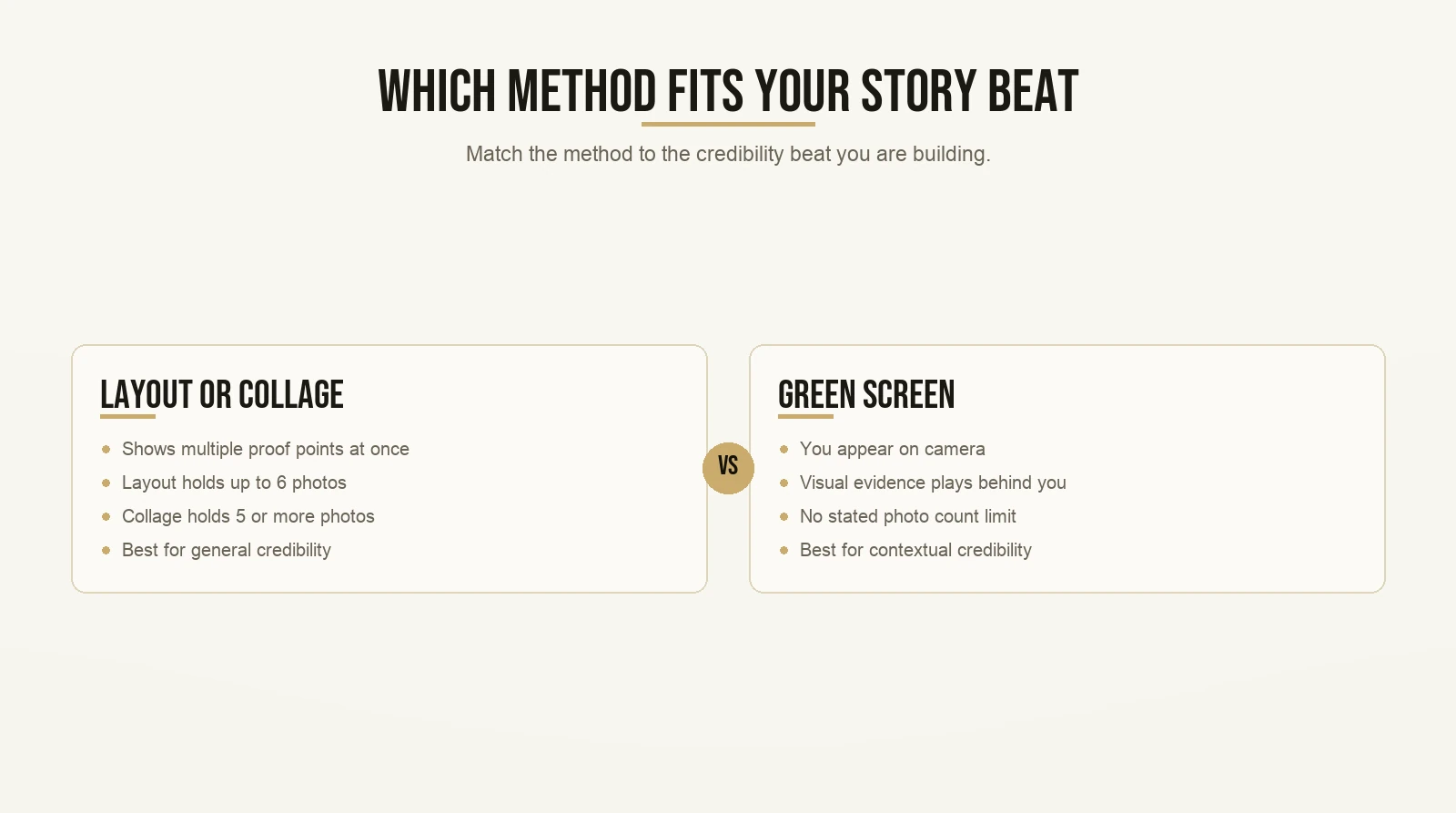
- Layout holds up to six photos in one static frame. Collage holds five or more in one animated frame. Which one you choose depends on what you need the viewer to experience.
- The green screen technique lets you stay on camera while a photo or video plays behind you. Almost no guide on this topic covers it, and it is the method with the most creative range.
- Choosing the method that is easiest is the wrong move. Choose based on your goal. The CIA framework shows you which method fits which beat in your content.
- The credibility bank is how coaches build authority through repeated Stories. Multi-photo methods give you the tools to do it deliberately, frame by frame.
What Is the Fastest Way to Add Multiple Photos to One Instagram Story?
The fastest native method is the Photo Sticker. Open the Stories camera, set your background, tap the sticker icon at the top of the screen, choose “Photo,” and pick any image from your camera roll. Move it, resize it, and add more. There is no stated limit on how many you can place. Total setup: under thirty seconds.
That said, fast is not always right. The method you choose shapes what the viewer experiences. A quick sticker stack communicates something different than a clean Layout grid or an animated Collage frame. Read that again: the method is part of the message.
How Do You Add Multiple Photos in One Frame on Instagram?
Instagram’s Layout feature places up to six photos in a single static grid inside one Story frame. Open the Stories camera, tap the Layout icon on the left toolbar, choose your grid arrangement, and fill each slot from your camera roll or live camera. Instagram’s official help page for Layout confirms you can tap “Change grid” to try different arrangements before you start filling slots. You are not locked into one format from the start.
One thing to clear up before we go further. If any guide you have read tells you to download the separate Layout app, ignore it. Instagram shut that standalone app down on May 29, 2024. The feature is now built into the main Instagram app. You do not need to install anything extra.
When Layout works best:
Layout is strongest when you want the viewer to see everything at once and compare. Before and after. Multiple steps shown side by side. A sequence of moments from the same process. The grid slows the eye down. It makes each panel worth looking at rather than tapping past.
For coaches, Layout is a strong format for showing evidence without making a verbal claim. Put four or five distinct moments in one frame and the visual pattern implies the story. That is the credibility bank working quietly in the background, before you ever say a word.
What Is the Instagram Collage Feature and How Do You Use It?
Collage is Instagram’s AI-powered multi-photo format. It creates an animated Story frame from five or more photos you select. Swipe to “Collage” in the Stories camera mode selector at the bottom of the screen, pick your photos, and Instagram arranges and animates them automatically.
Instagram’s official guide lists Collage as one of the three core native methods for adding multiple photos to one Story, alongside Layout and Photo Sticker. It is also the method that almost no article on this topic covers, which is why most creators do not know it exists.
The animation adds movement to a format that is otherwise still. Movement stops the thumb. If your goal is to break through the fast tap-tap-tap rhythm of someone moving through Stories quickly, an animated Collage frame does that better than a static Layout grid.
Hold on. If Collage grabs more attention, why would I ever use Layout?
Because the goal changes the format. Collage is eye-catching but slightly chaotic. Layout is deliberate and clean. When you want the viewer to slow down, compare, and absorb, Layout is better. When you want to stop the scroll before the viewer makes a conscious decision to look, Collage wins. Pick based on what the viewer needs to do in that specific moment.
How Do You Layer a Photo on Top of Your Story Background?
The Photo Sticker method lets you place photos freely on any Story canvas. Open the Stories camera, set your background (a video, a solid color, or another photo), tap the sticker icon at the top of the screen, choose “Photo,” and pick from your camera roll. Resize it, rotate it, and place it wherever you want. Repeat for each additional image.
Instagram’s tips and tricks guide covers the Photo Sticker as a native multi-photo Story tool. There is no stated upper limit on how many photo stickers you can add, which means you have full editorial control over the final layout.
A related tool worth knowing: the Cutouts sticker, introduced in May 2024, turns any photo or video clip into a custom reusable sticker. If you have a signature graphic, a branded visual, or a recurring element you use across multiple Stories, Cutouts saves you from re-uploading it each time.
When to use Photo Sticker:
Use it when you want to decide exactly where each visual sits on the canvas. Layout and Collage make arrangement decisions for you. Photo Sticker puts you in charge. If you already have a clear picture in your head of how the frame should look, this method gets you there.
What Is the Green Screen Method, and Why Do Most Coaches Skip It?
The green screen method puts a photo or video in the background of your Story while you stay in frame. Open the Stories camera, tap the green screen icon in the effects tray on the left side of the screen, tap “Add Media,” and pick a photo or video from your camera roll. Instagram replaces your background with that image while you film yourself in front of it.
This is the method that almost no competing guide covers, and it has the most creative range of any method on this list.
Here is what it actually does differently. Instead of placing photos on the screen as objects you can drag around, it makes one photo the environment you are standing inside. You can react to an article while it fills the background behind you. You can explain a before-and-after image while it plays at full size behind your shoulder. You can walk through a framework while the diagram sits right there in the frame. The viewer gets your face and the visual proof at the same time. Not one, then the other. Both at once.
That is a different viewer experience. And it is harder to dismiss than words alone.
Hold on. Is the green screen setup actually complicated?
It is four taps. Open the Stories camera, tap the green screen icon, tap “Add Media,” pick your photo. You are filming in under ten seconds. I find it is the format that surprises coaches the most when they first try it. The setup cost is low. The impact on a viewer is not.
Before you shoot, check the guide on correct Story dimensions so your background image fills the frame the way you intend. Getting the proportions right matters when you are composing yourself against a background photo.
How Do You Pre-Build a Multi-Photo Story Before You Upload It?
Build your layout in CapCut or a similar editing app first, export it as a single image or video, and upload it to Instagram Stories as you would any other piece of content. Instagram sees one file. The viewer sees whatever you designed.
This approach gives you creative control that the native tools do not offer. You pick the fonts, the sizing, the exact placement of every element, and the aspect ratio. You can blend photos with text overlays, custom backgrounds, and branded elements in ways that Layout and Collage do not support natively. Design it exactly the way you want it. Then post it.
The trade-off is time. For quick, in-the-moment Stories, pre-editing is overkill. For polished content you plan in advance, it is the right call.
The guide on building visuals in Canva that export cleanly to Instagram covers the design-first workflow from start to finish. The approach is the same whether you use Canva or CapCut: build outside Instagram, export, then upload.
Which Method Should You Use and When?
The method follows the goal, not your comfort level. Use Layout when you want the viewer to compare. Use Collage when you want to stop their scroll. Use Photo Sticker when you know exactly where you want each visual to sit. Use the green screen when you need to be in frame. Use CapCut when design control matters more than speed.
Here is a quick reference:
- Layout: You want the viewer to see and compare multiple visuals in a single static frame.
- Collage: You want an animated frame that grabs attention before the viewer consciously decides to look.
- Photo Sticker: You want full control over where each visual sits on the canvas.
- Green screen: You want to appear on camera while visual evidence plays behind you.
- CapCut pre-edit: You want complete design control before the file ever touches Instagram.
But what if I just want to post several photos quickly without designing anything?
Then use the Select Multiple method. From the Stories camera, tap the camera roll icon and select up to ten photos at once. Instagram creates one Story slide per photo. Each image gets its own frame. This is not the same as layering photos into one frame, but it handles the “I want to share several photos in one go” use case as fast as anything on this list.
How the CIA Framework Changes the Way You Think About Multi-Photo Stories
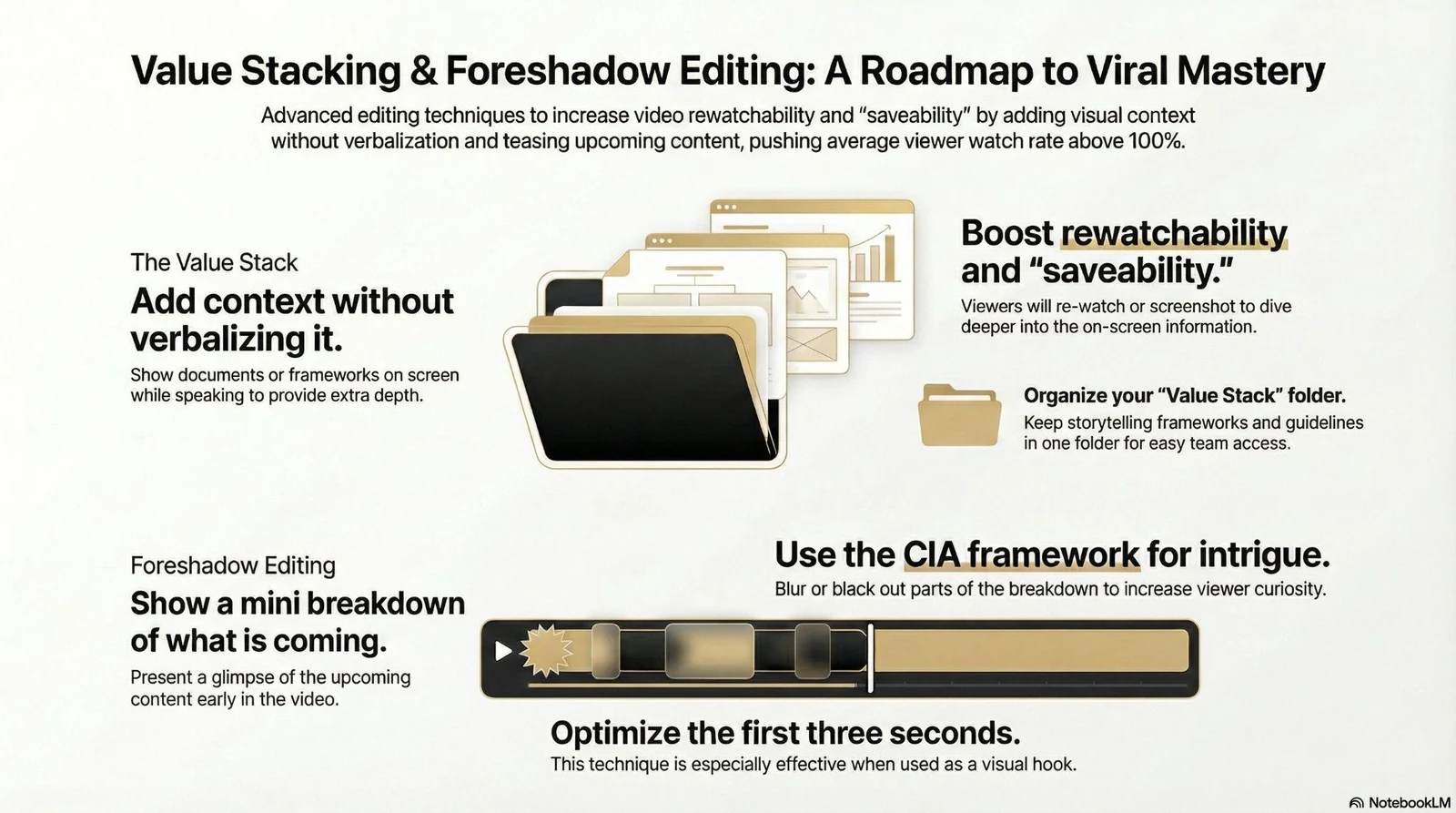
CIA stands for Context, Interest, and Action. It is a three-part structure for any piece of content: Context hooks the viewer and gives them a reason to keep watching. Interest delivers the substance, the evidence, the reason to care. Action tells them what to do next.
The structure applies to Stories the same way it applies to Reels or carousels. And once you see how multi-photo methods map onto it, the method choice gets a lot easier.
Most creators fall down in the Interest beat. They tell the viewer something. They describe a result, explain a process, share an opinion. The viewer hears a claim and moves on. There is nothing to anchor that claim to anything concrete.
The green screen method fixes this. When you put a screenshot, a diagram, or a piece of evidence behind you while you explain your point, the viewer sees your claim and the supporting visual at the same time. That is a stronger Interest beat than words alone. The evidence is right there.
Here is a worked example. You are a coach working with clients on a communication pattern they keep repeating. Context: “Here is the one thing I see in almost every new client’s first session.” Interest: green screen with a simple diagram or screenshot that shows the pattern, while you break it down in one or two plain sentences. Action: “DM me the word ‘pattern’ if this sounds familiar.”
That is a complete CIA frame inside a single multi-photo Story. The method (green screen) was not chosen because it was easy. It was chosen because it served the Interest beat: it made the evidence visible while the explanation was happening. The two worked together.
Layout and Collage serve the Interest beat differently. They show multiple proof points at once. They communicate pattern and consistency rather than live explanation. Use them when the visual itself is the argument, not when you need to narrate alongside it.
For a closer look at how the CIA structure applies to Reel formats coaches can adapt for their niche, that guide walks through the full framework from hook to close.
Building Your Credibility Bank with Multi-Photo Stories

The credibility bank is the body of trust you build with a viewer through repeated content. It has two parts: general credibility and contextual credibility.
A general credibility statement covers your broad track record. It tells the viewer who you are over a sustained period. A contextual credibility statement is specific to the topic you are covering right now. It tells the viewer why they should trust what you are saying about this particular thing.
Multi-photo Stories give you a format for both.
General credibility: Use Layout or Collage to show multiple proof points in one frame. Not a single screenshot. A pattern of them. When a viewer sees five distinct reference points at once, they are looking at a body of evidence. That registers differently than a single post. It signals that this is not a one-off moment. It is a consistent track record.
Contextual credibility: Use the green screen to put the specific evidence for your current claim behind you. If you are talking about a pattern you see in clients, show a visual that represents it. If you are discussing a framework, put the diagram in the background. The image anchors your claim to something the viewer can actually see. It makes the specific thing you are saying more believable, not just your authority in general.
These two modes work together. General credibility builds your reputation over time. Contextual credibility makes the viewer believe what you are saying in this moment. You need both.
When I teach the credibility bank, the contextual piece is the one most coaches forget. They post content that builds their general reputation just fine. But when they make a specific claim, there is nothing behind it. The viewer hears an assertion and has no way to evaluate it. A screenshot, a diagram, or a case reference in the background changes that completely.
Most coaches who rely on referrals have plenty of real-world credibility. Their existing clients trust them. Their colleagues respect them. The problem is that none of that exists on their Instagram. A viewer who has never heard of them cannot tell what they do, who they have helped, or why their approach works just from a one-photo Story. The guide on marketing for coaches who rely on referrals covers how to translate that real-life trust into a content presence that works without a warm introduction.
If you want to see what a credibility-first content profile looks like when all the pieces are in place, Max’s full background and approach are here.
Frequently Asked Questions
Does the separate Layout app still work?
No. Instagram discontinued the standalone Layout app on May 29, 2024. All Layout features moved into the main Instagram app. You access them directly from the Stories camera toolbar. There is nothing extra to download.
How do I post 20 photos on Instagram?
A 20-photo limit applies to Instagram feed carousels, not Stories. Instagram raised the feed carousel limit to 20 slides in 2024. Stories work differently. You can post up to 100 Story slides per day, and each method in this guide lets you layer or sequence photos within individual Story frames.
How do you share someone else’s post to your story?
Tap the paper-plane icon under any public post, then tap “Add to your story.” Instagram places that post as a sticker on your Story canvas. You can move it, resize it, and add your own photos or text around it before you publish.
Can I add more than six photos to one Story frame?
Yes, but not with Layout. Layout supports up to six photos in a single static frame. The Collage feature supports five or more photos in one animated frame. The Photo Sticker method has no stated limit, so you can keep adding stickers until the frame looks the way you want.
Which multi-photo method works best for coaches building a credibility bank?
Layout and Collage work best when you want the viewer to see multiple proof points at once. The green screen method works best when you want to appear on camera while specific visual evidence plays behind you. Match the method to the beat in your CIA structure: general credibility belongs in Layout or Collage, contextual credibility belongs in the green screen.
Want the templates behind content that actually gets watched? Grab the templates here and start with the first one today.