
Key Takeaways
- Instagram has three completely separate scheduling queues: the in-app scheduler, Meta Business Suite, and any third-party tools you use. They do not sync with each other.
- To view posts you scheduled inside the Instagram app, go to your profile, tap the three-line menu (top right), and select “Scheduled content.”
- Posts scheduled through Meta Business Suite will not appear in the Instagram app. Check business.facebook.com instead.
- As of March 1, 2026, native Instagram scheduling is open to all public accounts, not just Business or Creator accounts.
- Scheduling does not hurt your reach. The algorithm does not penalize queued posts.
- A full content calendar is only useful if you audit it. The weekly review loop below is what turns scheduling into a real growth system.
The Real Reason You Can’t Find Your Scheduled Post
Before any step list, there is one thing you need to know.
Instagram has three completely separate scheduling queues. They do not talk to each other.
Queue one: posts you scheduled inside the Instagram app on your phone.
Queue two: posts you scheduled through Meta Business Suite at business.facebook.com.
Queue three: posts you scheduled through a third-party tool like Buffer, Later, or Hootsuite.
If you scheduled a post in Meta Business Suite and then looked for it in the Instagram app’s Scheduled content section, it will not be there. The post is not missing. It lives in a different system entirely.
This is why most tutorials leave people more confused after they finish reading them. They show you where the Scheduled content button is. They never mention that the button only shows one of three possible queues.
Before you follow any step below, ask yourself one question: which tool did I actually use to schedule that post? That determines exactly where to look.
How Do You View Scheduled Posts Inside the Instagram App?
Go to your profile, tap the three horizontal lines in the top right corner, and select “Scheduled content.” Every post, Reel, or carousel you queued from within the app will be listed there. Tap the three-dot menu on any post to reschedule it, share it right away, or delete it.
Here is the full path:
- Open Instagram and go to your profile.
- Tap the three horizontal lines (the hamburger menu) in the top right corner.
- Scroll down and tap “Scheduled content.”
- Find the post you want to manage.
- Tap the three-dot menu next to it.
- Choose “Reschedule,” “Share now,” or “Delete.”
There is a second path to the same screen: go to Settings, then Account types and tools, then Scheduled content.
One label detail worth flagging. On iOS, the scheduling toggle inside your draft is called “Advanced settings.” On Android, it is called “More options.” Same toggle, different name. If you are following a tutorial written on an iPhone and you use Android, that label difference is why you cannot find it.
How Do You Schedule a Post From Inside the Instagram App?
Build your post as normal. Before you tap “Share,” tap “Advanced settings” (iOS) or “More options” (Android). Toggle on “Schedule this post.” Pick your date and time, then tap “Schedule.” The post will appear in your Scheduled content section until it goes live automatically.
The scheduling window is generous: up to 75 days in advance and up to 25 posts queued for a single day. For most creators, 75 days of runway is more than enough.
If you want to think about when to put those posts on the calendar, the data on which days and times consistently drive stronger performance is a useful next step alongside this.
Do You Need a Business Account to Schedule Posts on Instagram?
No. As of March 1, 2026, Instagram opened native scheduling to all public accounts. You no longer need a Business or Creator account. The only requirement is that your account is set to public. Private accounts still cannot access scheduling.
If a guide you found says “requires a Professional account,” that information is now out of date.
How Do You Find Posts Scheduled in Meta Business Suite?
Go to business.facebook.com. Click “Content” in the left menu, then “Planner.” Filter the calendar view for your Instagram account. Every post you queued through Business Suite will appear on that calendar.
One important note first. Creator Studio is gone. Meta retired it around 2024 and folded all scheduling into Business Suite. If any tutorial you find still references Creator Studio, stop reading it. That interface no longer exists.
Business Suite has one capability the in-app scheduler does not: it can schedule Stories. The catch is that Stories scheduled through Business Suite cannot include interactive stickers. No polls. No question boxes. No countdown timers. No sliders. If those features matter to your Stories, you will need to post them manually.
Does Scheduling Posts on Instagram Hurt Your Reach?
No. Adam Mosseri, the head of Instagram, has stated directly that scheduling does not affect reach. The algorithm does not penalize posts that were queued in advance. Reach is determined by the content itself: the hook, the topic, and whether the first few seconds give a stranger a reason to keep watching.
But Max, I have heard from multiple people who swear their reach dropped the moment they started using a scheduler.
I hear that all the time. Here is what is actually happening in those cases.
When you batch-schedule content, you are queuing posts you made days or weeks ago. By the time they go live, the topic might feel stale. Or you stopped paying attention to whether the timing still made sense for when your audience is actually online. The reach drop has nothing to do with the scheduler. It has everything to do with the content and whether it was still the right fit for that moment.
Scheduling is a tool. The tool does not hurt you. Using it without thinking about what you are actually queuing does.
Is There a Free Way to Schedule Instagram Posts?
Yes. The Instagram app is free. Meta Business Suite is free. Between the two, you can schedule Reels, feed posts, carousels, and Stories at no cost. The only limit is the 75-day scheduling window through the app.
There is a paid option as of September 2026: a Meta tier that extends Reel scheduling to one year ahead for those who need to plan that far out. For most creators and coaches, 75 days of free runway is more than enough.
How Do You Schedule Posts on Instagram From a Laptop?
The Instagram app’s scheduler only works on mobile. For desktop, the cleanest option is Meta Business Suite. Go to business.facebook.com, click “Create post,” build your content, and set the date and time in the scheduling section before you publish.
Instagram’s website does allow you to create posts from a browser, but the scheduling toggle is not consistently available there. Business Suite is the more reliable desktop path.
If you batch-produce your visuals on a laptop first, the workflow covered in how to build your Instagram posts in Canva pairs well with this setup. Build everything in Canva, export your files, then queue them in Business Suite without ever picking up your phone.
How Do You Create Instagram Posts That Are Worth Scheduling?
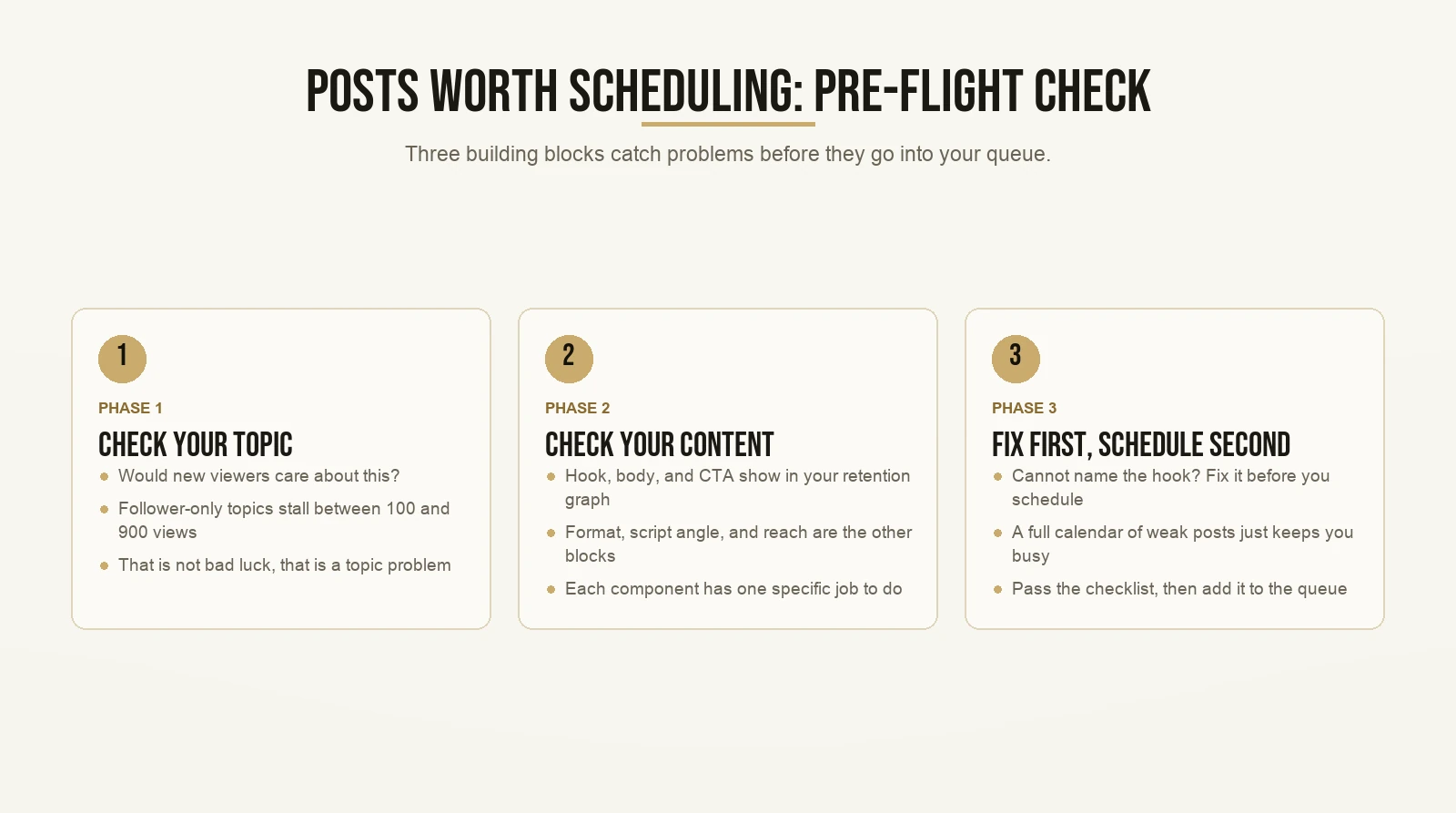
Before you fill a content calendar, make sure each post is actually worth putting in it. Max’s 7 building blocks framework gives you a specific pre-flight check for every piece of content: seven components that each do a distinct job, from stopping the scroll to converting the viewer into a follower or a client.
Here is where most scheduling guides stop being useful. They show you where the button is. They do not tell you what to put in the queue.
But Max, I already know what I want to post. I just needed to find my scheduled content in the first place.
Fair enough. Stay with me for a minute, because this is the part that actually determines whether a content calendar grows an account or just keeps it busy.
A calendar full of mediocre content is a more organized way to not grow.
The 7 building blocks are the seven specific components every viral video needs to have. This is not vague advice to “make better content.” It is a named checklist that identifies what each component is supposed to accomplish, so you can catch a problem before you hit schedule rather than after you see the numbers.
Three of the building blocks show up in your retention graph every single time you post. Low average watch time means the hook is not working. A drop-off in the middle of the video means the body lost people. Strong watch-through with no action afterward means the CTA failed. The other building blocks cover your topic selection, your format (the style and structure of how the video is filmed), your script angle, and how the video reaches people who have never seen your content before.
Here is the practical issue those blocks are designed to catch. Videos that only interest your existing audience stall between 100 and 900 views. That is not bad luck. That is a topic problem. The video is relevant to people who already follow you, and nobody else finds it worth watching past the first few seconds. The topic block inside the 7 building blocks is specifically designed to catch that mistake before you schedule it.
Run every piece of content through the checklist before it goes into the queue. If you cannot identify what the hook is, who outside your current followers would actually care about the topic, and whether the format fits the platform, fix it first. Schedule it second.
That filter alone will improve a content calendar faster than any scheduling tool ever will.
If you are running short on ideas that would pass the checklist, Reel ideas built specifically for coaches and consultants is worth working through before you start building your next batch. And if you want a framework for turning those ideas into a repeatable format, how to build a content series on Instagram covers exactly that.
The Credibility Bank: Why Consistent Scheduling Matters More Than You Think

There is a concept central to Max’s teaching called the credibility bank.
The credibility bank is not a metric. It is the body of content sitting on your profile when a cold viewer lands there for the first time. Someone finds your Reel in their feed. They like it. They tap your name. Now they are quietly asking: who is this person, and can I trust them with my problem?
The answer lives in your feed, your highlights, and the consistency of what you have posted over time. If they find 40 posts that all teach one specific thing well and recently, that is a full credibility bank. If they find three posts from eight months ago and nothing since, that is empty. A cold viewer does not press follow on an empty bank.
This is why consistent scheduling matters most for coaches and consultants. The referral model works because someone vouched for you directly to a specific person. Scheduled, consistent social content is the digital version of that vouch, running twenty-four hours a day for every stranger who finds you through the algorithm.
From Max’s teaching, your Instagram profile needs to function as a full credibility hub. The highlight section is a core piece of this. At minimum, three highlights: who you are (the story of how you got from not having the result your clients want to having it), what you do (the mechanism, not the offer), and client results. Those highlights serve the same cold audience your scheduled content reaches. They answer the trust question a visitor is quietly asking before they decide to follow.
The goal of scheduling is not to batch content so you can ignore Instagram for six weeks. The goal is that consistency creates the archive, and the archive builds trust. A prospect who finds your profile at midnight and sees a coherent, steady body of useful work does not need to wait for you to reply to their DM. The content makes the case without you.
If you want to understand how Max builds this system for coaches who currently get clients only through referrals, his background and approach gives you that picture.
How Do You Turn Your Scheduled Posts Into a Weekly Growth Loop?
Schedule your content, then set aside 30 minutes at the end of every week to review what actually posted. Open the Instagram Edits app (free, launched April 2025), tap “Insights” at the bottom right, and look at the past seven days. Find your outliers. Double down on what worked and fix what did not before you build the next batch.
Here is the full workflow from Max’s Viral Growth Manifesto.
Look at last week’s posts and ask three questions:
- Which posts underperformed? (Below your average view count)
- Which posts overperformed? (Above your average view count)
- Which posts were true outliers? (3x or more your average view count)
Then go one level deeper on anything that hit 3x or above. Check three metrics:
Average watch time. Low watch time means the hook is not working. Fix the hook and you fix ninety percent of your content problems.
Followers vs. non-followers in your views. A high non-follower percentage means you are reaching new people. That is the number you want climbing over time.
Retention graph shape. A cliff in the first three seconds is a hook problem. A gradual drop through the middle is a body problem. A sharp drop right at the end is a CTA problem.
Now take that data back into your scheduler.
If a topic was a 3x outlier, queue three more posts on that same topic. Same topic, but a different format, hook, or angle. You are not copying it. You are finding the edges of what works. If a format performed consistently well across multiple topics, schedule more of that format with new topics. Double down on what the data is actually telling you.
This is the loop that makes scheduling worth doing. Without the review, you are filling a calendar. With it, you are running a system that tells you what to make more of, every single week.
The review loop also connects directly to how often you post. It only generates useful data if you are posting enough to compare results. If you want a framework for how frequently to post on Instagram based on what actually builds momentum, that goes hand-in-hand with this system.
What Happens When You Mix Multiple Scheduling Tools?
If you use multiple scheduling tools, each one keeps its own queue and none of them sync with the others. You end up with three separate places to check with no single view of your calendar. Pick one tool for all your scheduling and stick to it. That one decision makes your weekly audit significantly easier.
Use the in-app scheduler if you primarily post from your phone.
Use Meta Business Suite if you work mostly from a laptop or need to schedule Stories.
Use a third-party tool only if you need to manage multiple platforms at once. Know that posts queued there will not appear in either Instagram-native view when you go looking for them.
Mixing tools is not fatal. But the weekly review loop described above only works when you can see your full queue in one place. A fragmented queue means a fragmented audit, and a fragmented audit means you miss the pattern.
Frequently Asked Questions
Can I schedule Instagram Stories?
Yes, but only through Meta Business Suite at business.facebook.com, not the Instagram app itself. Stories scheduled through Business Suite cannot include interactive stickers like polls, question boxes, or countdown timers. Post those manually.
Why is my scheduled post not showing up in the Instagram app?
Instagram has three separate queues that do not sync: posts scheduled in the app, posts scheduled through Meta Business Suite, and posts from third-party tools. If you cannot find a post under Scheduled content in the app, check business.facebook.com.
How far in advance can I schedule Instagram posts for free?
Through the Instagram app, you can schedule up to 75 days ahead and queue up to 25 posts for a single day at no cost. A paid Meta tier launched in late 2026 extends Reel scheduling to one year for those who need a longer window.
Does Instagram send a notification before a scheduled post goes live?
No. Posts publish automatically at the time you set with no advance notification. Check your Scheduled content section regularly to confirm what is queued and when each post will publish.
Can a private Instagram account schedule posts?
No. Native scheduling requires your account to be set to public. Private accounts cannot access the feature, even after the March 2026 update that opened it to all public accounts.
Want the templates behind content that actually gets watched? Grab the templates here and start with the first one today.